Managing Settings: Web Dashboard vs Platform App

8 min read Updated Mar 11, 2026 Team & Settings

Social Intents gives you two ways to manage live chat: the web dashboard at socialintents.com and platform integrations with Microsoft Teams, Slack, Google Chat, Webex, or Zoom. Both approaches deliver chat conversations to your agents, but they differ in where agents respond, what administrative features are available, and how the day-to-day workflow feels. This guide compares the two approaches, explains what is available in each, and helps you decide which is right for your team.

The Two Approaches

Painel de controle da Web

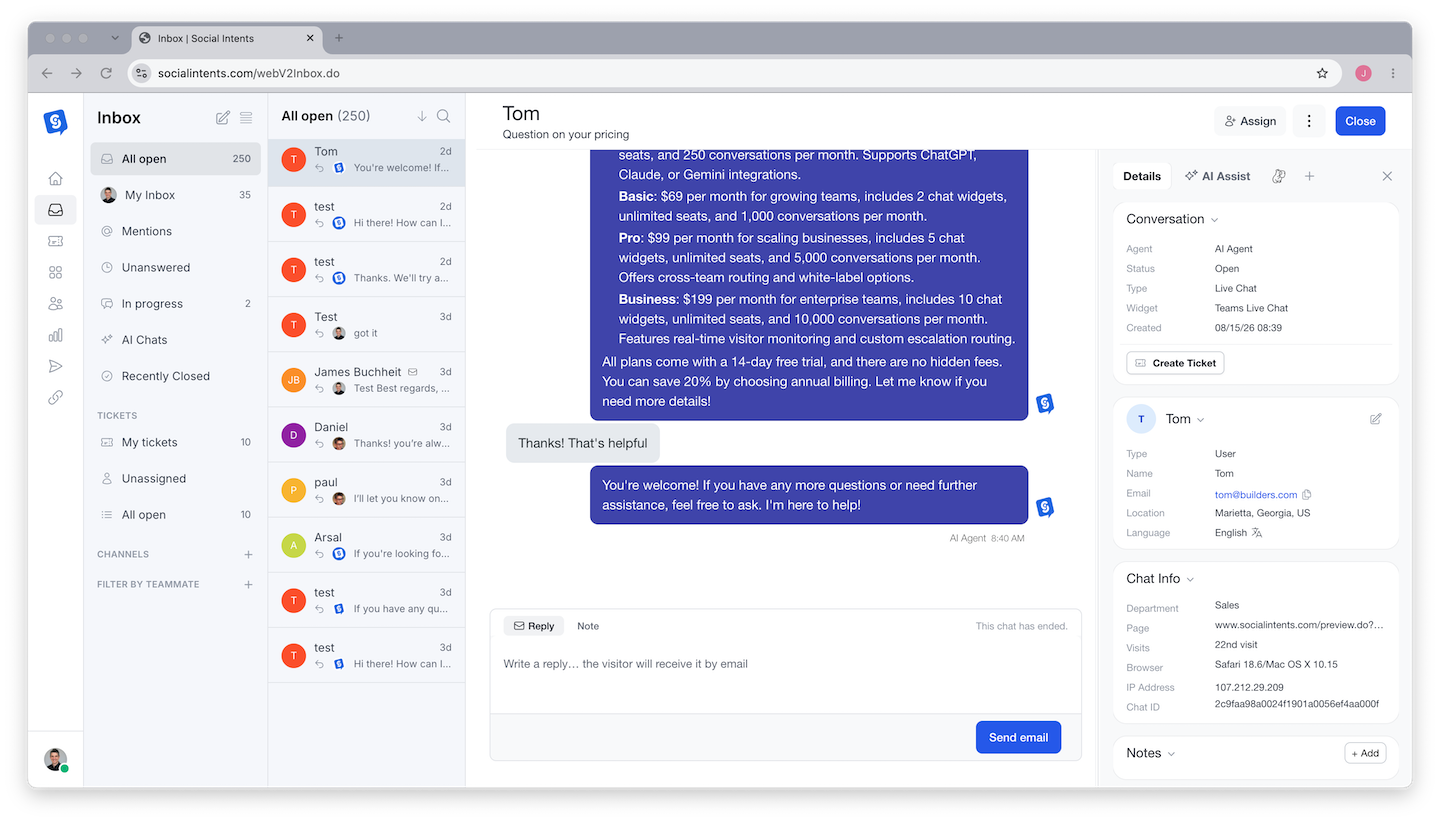
The Social Intents web dashboard is a browser-based application at socialintents.com. Agents log in, open the chat console, and handle conversations directly in the dashboard. Administrators use the dashboard to manage all settings, agents, widgets, integrations, reports, and billing.

The web dashboard is the complete, full-featured interface for Social Intents. Every setting, every configuration option, and every administrative feature is accessible through the dashboard.

Platform Integration App

Platform integrations connect Social Intents to Microsoft Teams, Slack, Google Chat, Webex, or Zoom. When integrated, incoming chat conversations appear as messages in a designated channel within your platform. Agents respond directly from the platform they already use every day - no need to open a separate dashboard or learn a new tool.

Platform integrations are primarily designed for the agent chat experience. Administrative settings like widget configuration, agent management, schedule setup, and billing are still managed through the web dashboard.

Comparação de recursos

RecursoPainel de controle da WebPlatform App (Teams/Slack/etc.)
Answer live chats
Receive notifications✅ Browser notifications✅ Platform native notifications
View visitor information✅ Full visitor panel✅ Summary in message headers
Use canned responses✅ Dropdown menu⚠️ No built-in shortcut selector (can paste manually)
Manage agents✅ Full CRUD❌ Use web dashboard
Configure widgets❌ Use web dashboard
Set schedules❌ Use web dashboard
Create canned responses❌ Use web dashboard
View reports❌ Use web dashboard
Configure AI chatbot❌ Use web dashboard
Manage billing❌ Use web dashboard
Toggle online/offline✅ Manual toggle in console⚠️ Varies by platform
Mobile access⚠️ Mobile browser✅ Native mobile app
Block visitors✅ /block command✅ /block command
File sharing

Web Dashboard in Detail

Chat Console

The chat console is the agent's primary workspace in the web dashboard. It displays active conversations, visitor information, and quick actions. When a new chat arrives, a browser notification appears and the chat console shows the incoming request. Agents can handle multiple simultaneous conversations, each in its own chat panel.

The console includes:

  • Active chat list - All current conversations with visitor names and status
  • Chat window - The conversation thread with message input
  • Visitor info panel - Sidebar showing the visitor's name, email, location, current page, referrer, custom variables, and more
  • Shortcuts dropdown - Quick access to canned responses for inserting common answers
  • Online/offline toggle - Change your availability status without leaving the console
  • Language translation - Translate visitor messages in real time across 20+ languages

Administrative Pages

The web dashboard includes all administrative features organized in the sidebar navigation:

  • Agents - Add, edit, remove team members and manage roles
  • Widgets - Create and configure chat widgets, customize appearance, manage groups
  • Shortcuts - Create and manage canned responses
  • Schedule - Set up online schedules and holidays
  • Reports - View chat history, agent performance metrics, and conversation transcripts
  • AI Settings - Configure ChatGPT, Claude, or Gemini AI chatbot, train on your content, manage AI actions
  • Integrations - Connect platform integrations, configure WhatsApp, SMS, and third-party tools
  • Account - Manage billing, subscription, and account settings

Platform Integrations in Detail

Microsoft Teams

With the Microsoft Teams integration, all incoming chats appear as messages in a designated Teams channel (e.g., "#LiveChat"). Each visitor conversation is a separate thread, keeping conversations organized. Agents respond by replying in the thread, and their replies are sent back to the visitor in real time.

Teams integration uses your existing Teams desktop and mobile apps, so agents receive native Teams notifications for incoming chats. There is no additional software to install. See the Microsoft Teams integration guides for setup details.

Slack

The Slack integration routes incoming chats to a designated Slack channel. Each conversation appears as a threaded message. Agents reply in the thread, and responses are delivered to the visitor instantly. Slack's desktop and mobile notifications ensure agents never miss a chat.

Slack integration is particularly popular because most teams already have Slack open throughout the day. Adding live chat to an existing Slack workflow requires minimal behavior change from agents. See the Slack integration guides for setup instructions.

Bate-papo do Google

Google Chat integration delivers incoming conversations to a Google Chat space. Agents respond in threads within the space. This is ideal for teams that use Google Workspace as their primary collaboration platform. See the Google Chat integration guides.

Webex and Zoom

Webex and Zoom integrations follow the same pattern - incoming chats are delivered to a designated space or channel within the platform, and agents respond in threads. These integrations are ideal for organizations that have standardized on Webex or Zoom for team collaboration. See the Webex and Zoom guides.

Choosing the Right Approach

Use the Web Dashboard If:

  • You want a dedicated, purpose-built live chat interface
  • Your team does not use Microsoft Teams, Slack, or Google Chat
  • You want full access to all features in one place - no switching between tools
  • You prefer having the visitor information panel, canned response dropdown, and agent controls in a single view
  • You are a solo operator or small team and want the simplest setup possible

Use a Platform Integration If:

  • Your team already lives in Teams, Slack, or Google Chat throughout the day
  • You want to eliminate the need for a separate tool - agents respond where they already work
  • Mobile notifications through your existing platform app are important
  • You want team visibility - everyone in the channel can see incoming chats and conversation activity
  • You want to minimize training - agents already know how to use their collaboration tool

Use Both Together If:

  • Admins use the dashboard for settings and configuration while agents use the platform app for conversations
  • Some team members prefer the dashboard while others prefer their platform app
  • You want the rich visitor info and shortcuts available in the dashboard as a complement to platform-based chat handling
There is no wrong answer. Many teams use a platform integration for day-to-day chat handling and switch to the web dashboard only when they need to adjust settings, run reports, or manage the AI chatbot. You do not have to choose one exclusively - use both for what each does best.

Administration Is Always in the Dashboard

Regardless of which approach you choose for daily chat operations, all administrative tasks are performed in the web dashboard. Platform integrations do not include settings management interfaces. This separation keeps the platform integration clean and focused on conversations while giving administrators full control through the purpose-built dashboard.

Administrative tasks that require the web dashboard:

  • Adding, editing, or removing agents
  • Changing agent roles
  • Creating or modifying chat widgets
  • Setting up online schedules and holidays
  • Creating or editing canned responses (shortcuts)
  • Configuring AI chatbot settings and training data
  • Setting up AI actions (escalation routing, calendar booking, etc.)
  • Viewing reports and chat transcripts
  • Managing integrations (WhatsApp, SMS, CRM connections)
  • Billing and subscription management

Switching Between Approaches

You can switch between or combine approaches at any time. If you start with the web dashboard and later decide to add a Slack integration, your existing settings, agents, and chat history remain intact. The Slack integration simply adds a new notification and response channel on top of your existing configuration.

Similarly, if you start with a Teams integration and later want to use the web dashboard's chat console for certain agents, both can operate simultaneously. There is no need to disconnect one to use the other.

Perguntas frequentes

Can agents use the dashboard and a platform integration at the same time?

Yes. An agent can have the web dashboard open for access to the visitor info panel and canned responses while also receiving notifications through Teams or Slack. The two approaches are complementary, not mutually exclusive.

Which platform integration is most popular?

Microsoft Teams and Slack are the most popular integrations. The choice typically depends on which collaboration platform your organization already uses. Both offer the same core live chat functionality.

Do I need the dashboard at all if I use a platform integration?

You need the dashboard for administrative tasks: adding agents, configuring widgets, managing the AI chatbot, running reports, and handling billing. For day-to-day conversations, the platform integration is sufficient.

Can different agents use different platforms?

Yes, but each widget connects to one platform at a time. You can create separate widgets - one connected to Slack for the sales team and another connected to Teams for the support team. Each widget routes conversations to its configured platform.

Is the mobile experience better with the dashboard or a platform app?

Platform apps (Teams, Slack) provide a superior mobile experience because they have dedicated, optimized mobile apps with native push notifications. The web dashboard works in mobile browsers but is not as polished as a native app. If mobile chat handling is important to your team, a platform integration is strongly recommended.

Does the platform integration support AI chatbot features?

Yes. The AI chatbot operates at the widget level, so it works regardless of whether agents use the dashboard or a platform app. AI responses appear in the conversation thread on your platform. When the AI chatbot escalates to a human, the agent picks up the conversation in their platform. AI chatbot configuration and training are managed through the web dashboard.

Can I set up multiple platform integrations?

Each widget connects to one platform. To use multiple platforms, create separate widgets - for example, one widget for Slack and another for Teams. Each widget can have different settings, groups, and platform connections.