Previewing and Testing Your Chat

16 min read Updated Mar 11, 2026 Quick Start

Testing before launch prevents mistakes and makes sure visitors have a good experience from their first interaction. Below we cover how to preview your chat widget in the dashboard, test the full conversation flow from visitor message to AI response to human handoff, check behavior across devices and browsers, and fix the most common setup issues. The whole process takes about 15 to 20 minutes.

When to test: Run through this checklist after creating a new widget, after changing your AI chatbot settings (new training content, updated system instructions, or engine switch), after modifying your team platform integration, and after updating your website's HTML or CMS configuration. Testing after every change catches issues before your visitors encounter them.

Using the Dashboard Preview

Social Intents includes a built-in preview that lets you interact with your chat widget without installing it on your website. This is the fastest way to verify appearance and chatbot behavior during setup.

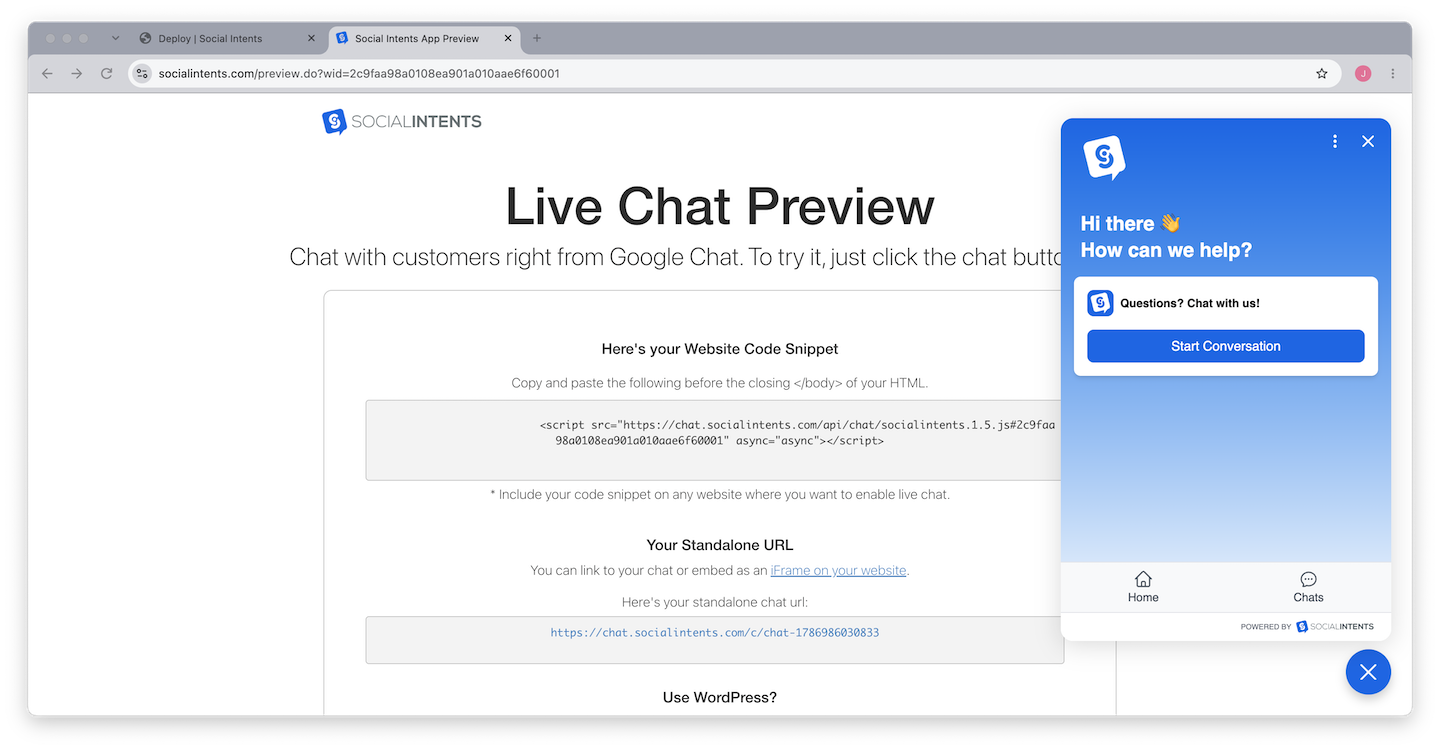
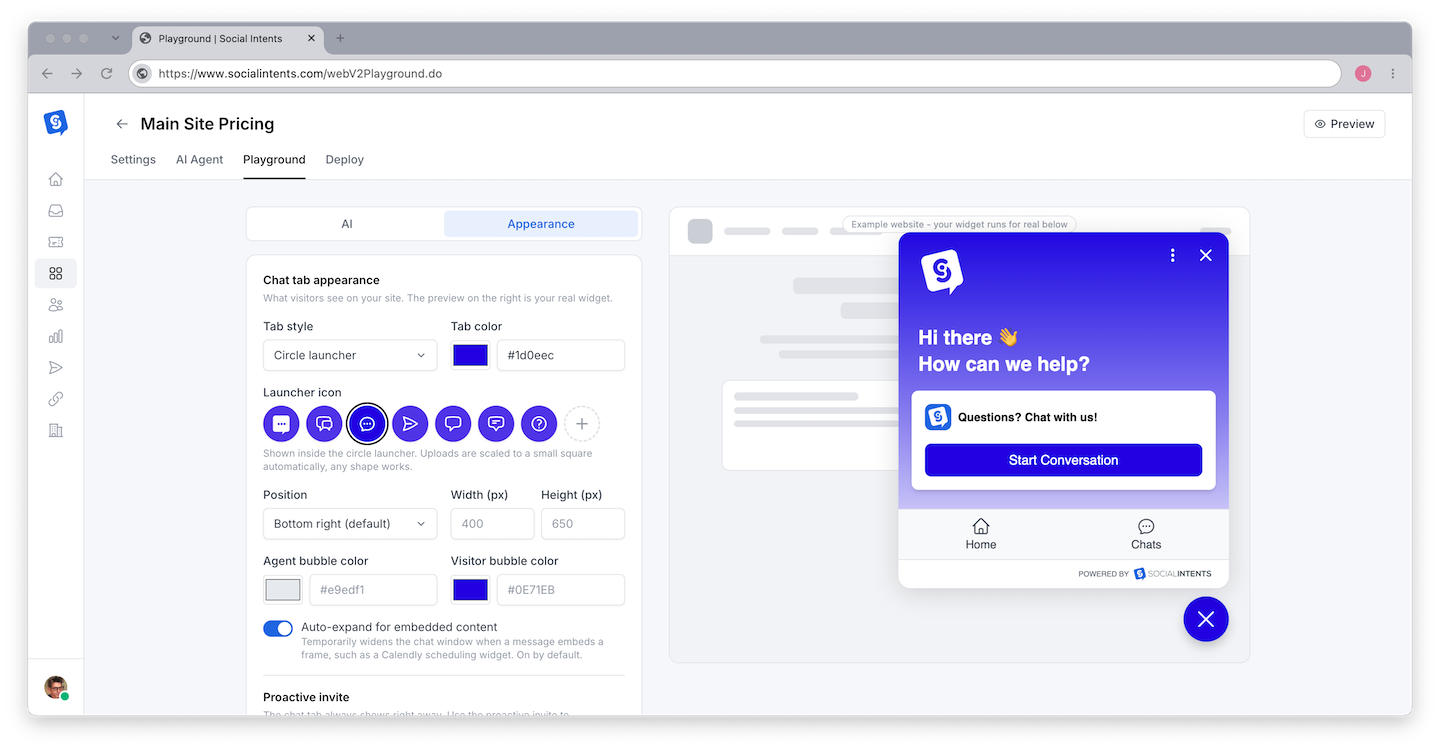
To open the preview, go to My Apps in your dashboard, select the widget you want to test, and click the Preview button in the top-right corner. A new browser tab opens showing a simulated version of your website with your chat widget in the corner.

What You Can Test in the Preview

  • Visual appearance - Confirm that the chat button color, position (bottom-right or bottom-left), button text, and chat window header all match your brand and configuration
  • Welcome message - Verify that visitors see the correct greeting when they open the chat widget
  • AI chatbot responses - Type questions and verify the chatbot answers accurately using your training content
  • Pre-chat form - If you enabled a pre-chat form, verify it appears before the chat starts and collects the fields you configured (name, email, phone, custom fields)
  • Agent photos - Confirm profile pictures display correctly next to agent messages
  • Proactive messages - If you configured proactive chat invitations, verify they appear after the configured delay
The preview uses your live settings. Any changes you make to your widget - chatbot instructions, training content, appearance, pre-chat form - are reflected in the preview immediately. You do not need to save or republish before testing in the preview. This makes the preview ideal for rapid iteration: make a change, test it, adjust, and test again.

Testing the Full Chat Flow

The dashboard preview is excellent for quick visual checks and chatbot testing, but you must also test the full end-to-end message flow to ensure conversations reach your team platform correctly. This section walks through six distinct test scenarios that cover every path a conversation can take.

Test 1: Visitor to AI Chatbot

This test verifies that your AI chatbot responds correctly using the content you trained it on. If you do not have an AI chatbot enabled, skip to Test 3.

Open the preview or your website with the widget installed, and click the chat button to open the chat window.
Ask a question your chatbot should know the answer to. Choose something explicitly covered in your training content - for example, if you trained the chatbot on your pricing page, ask "What are your pricing plans?" or "How much does the Pro plan cost?" If you trained it on your FAQ page, ask one of those questions.
Evaluate the response for accuracy and tone. The chatbot should answer correctly using information from your training content. Check that the answer is factually accurate, written in the tone you specified in your system instructions, and includes relevant details without hallucinating information that does not exist in your training data.
Ask a follow-up question to test conversational context. For example, if the chatbot just explained your pricing, ask "Which plan includes the most widgets?" The chatbot should maintain context from the previous exchange and give a coherent follow-up answer.
Ask a question the chatbot should NOT be able to answer - something not covered in your training content. The chatbot should acknowledge that it does not have that information and offer to connect the visitor with a human agent, rather than guessing or making up an answer.
If the chatbot gives incorrect answers: The most common cause is insufficient or unclear training content. Add more URLs, upload product documentation, or create specific Q&A pairs for the topics where the chatbot struggles. After adding new training content, wait a few minutes for processing to complete, then test again. See Training Your Chatbot on Your Content and Improving Response Quality for detailed guidance.

Test 2: Chatbot Escalation to Human Agent

This test verifies that the chatbot correctly hands off conversations to your team when a human agent is needed. This is one of the most critical tests - a broken escalation path means visitors who need human help get stuck.

Start a new chat and ask a few questions that the chatbot can answer. This establishes a conversation history that your agent should see when the chat escalates.
Trigger an escalation. Type one of your configured escalation phrases - common examples include "Talk to a human," "I want to speak to someone," "Transfer me to an agent," or "Connect me with support." If you are using AI-powered escalation, the chatbot may also escalate automatically when it detects frustration or repeated questions it cannot answer. See Escalation to Live Agents for how to configure escalation triggers.
Check your team platform immediately. Open Microsoft Teams, Slack, Google Chat, Zoom, or Webex and verify that a new conversation thread appeared in the correct channel or space. The notification should arrive within a few seconds of the escalation.
Review the conversation context. The escalated thread should include the full chat history - the visitor's original questions, the chatbot's responses, and any pre-chat form data the visitor submitted. Your agent should have complete context so they do not need to ask the visitor to repeat themselves.
Reply from your team platform. Type a response in the conversation thread from Teams, Slack, or your connected platform. Switch back to the browser with the chat widget and verify that your reply appears in the visitor's chat window within 1 to 2 seconds.
Continue the conversation. Exchange several more messages to verify that the two-way communication remains stable. Send a longer message with formatting, a link, and special characters to make sure everything renders correctly on both sides.

Test 3: Direct Live Chat Without a Chatbot

If you are using Social Intents for direct live chat without an AI chatbot, or if you want to verify the agent-only experience:

Open the chat widget and send a message. A new conversation thread should appear in your team platform channel within a few seconds.
Reply from your team platform. The visitor should see your response in the chat widget immediately.
Exchange 5 to 10 messages back and forth to verify real-time conversation flow, message ordering, and delivery reliability. Include some longer messages, short one-word replies, and messages with special characters or links.
Test concurrent conversations. Open a second browser window (or incognito tab) and start a separate chat. Both conversations should appear as separate threads in your team platform, and agents should be able to respond to each independently without messages crossing between conversations.

Test 4: Offline Behavior

Understanding what happens when no agents are available is critical for visitor experience. Test your offline behavior to make sure visitors are handled gracefully outside of business hours or when your team is unavailable.

Set all agents to offline by changing your status in the Social Intents dashboard, or wait until outside your configured business hours if you have an online schedule configured.
Open the chat widget. Depending on your configuration, you should see one of three behaviors:
  • AI chatbot handles the conversation independently - If your chatbot is configured to operate when agents are offline, it will respond to visitors as usual and only show an offline message if the visitor requests human help. This is the recommended configuration for 24/7 coverage.
  • Offline message form appears - If no chatbot is enabled (or the chatbot is set to only work when agents are online), visitors see a form asking for their name, email, and message. This lets your team follow up by email when they return online.
  • Widget is hidden entirely - If you configured the widget to hide when all agents are offline, the chat button will not be visible on the page. This prevents visitors from starting conversations that cannot be answered.
Submit an offline message (if applicable) and verify that it arrives in your email notifications or appears in the Social Intents dashboard under the offline messages section. Confirm the visitor's name, email, and message content are captured correctly.

Configure your preferred offline behavior in Online Schedule vs Manual Status and What Happens When Everyone Is Offline.

Test 5: Pre-Chat Form Validation

If you enabled a pre-chat form to collect visitor information before the chat begins, test it thoroughly:

Open the widget and verify the pre-chat form appears with all configured fields - name, email, phone, department selector, or any custom fields you added.
Test validation. Try submitting the form with empty required fields. You should see validation error messages. Try entering an invalid email format. The form should reject it.
Submit the form with valid data. The chat window should open and the visitor data should be attached to the conversation. When the chat appears in your team platform, verify that the agent can see the pre-chat form data (visitor name, email, etc.) in the conversation thread.

See Pre-Chat Forms and Custom Fields for setup and customization details.

Test 6: Escalation Routing

If you configured AI-powered escalation routing to direct chats to specific channels based on the conversation topic, test each routing path:

Start a chat and describe a billing issue - for example, "I have a question about my invoice" or "Can you help me with billing?" The chatbot should route the conversation to your billing channel (e.g., #billing-support).
Start a new chat in a separate browser and describe a technical issue - for example, "My widget is not loading on my website" or "I need help with the API." The chatbot should route it to your technical support channel (e.g., #engineering-support).
Verify each conversation arrived in the correct channel in your team platform. If routing is incorrect, review your escalation routing rules in Escalation Routing.

Testing on Your Live Website

After testing in the dashboard preview, install the widget embed code on your actual website and run through the tests again in that environment. Website testing catches issues that the preview cannot detect:

  • JavaScript compatibility - Verify the Social Intents script loads correctly alongside your other scripts. Check the browser developer console (F12 → Console) for JavaScript errors.
  • CSS conflicts - Confirm the widget renders correctly and is not affected by your site's global CSS resets or style overrides. The widget uses scoped styles, but occasionally aggressive site-wide styles can interfere.
  • Z-index stacking - Make sure the chat button and window appear above all other page elements, including fixed headers, modal overlays, and cookie banners.
  • Page load performance - Verify the widget does not noticeably slow down your page. The script loads asynchronously, so it should have no impact on Core Web Vitals. You can confirm by running a Google Lighthouse audit before and after adding the embed code.
  • Mobile layout - Open your website on a phone (or use Chrome DevTools responsive mode) and verify the chat widget renders correctly on small screens, does not overlap critical content, and provides a comfortable chat experience. Test both portrait and landscape orientations.
Test in multiple browsers. Open your website in Chrome, Firefox, Safari, and Edge to verify cross-browser compatibility. The most common issues are caused by browser-specific CSS behaviors or ad-blocker extensions that may block the chat script. If you use Internet Explorer 11 for legacy support, note that it is not supported.

Testing with Real Team Members

Before announcing live chat to customers, have two or three team members participate in a testing session. This reveals workflow issues that solo testing cannot:

  • Notification reliability - Do all team members receive notifications when a chat arrives? Check both desktop and mobile notifications. If someone is not receiving alerts, review their notification settings in their collaboration platform.
  • Response time - How quickly do team members notice and respond to new chats? If responses are slow, consider enabling audio alerts or adjusting notification priority settings.
  • Handoff between agents - If one agent starts a conversation and another needs to take over, test the transition. Both agents should be able to see the full conversation history in the team platform thread.
  • Concurrent chat handling - Have multiple "visitors" chat simultaneously to verify that agents can handle multiple conversations without confusion. Each conversation should be a separate thread.

Common Issues and Solutions

IssueLikely CauseSolution
Widget does not appear on the pageEmbed code missing, placed incorrectly, or blocked by an ad blockerVerify the <script> tag is placed before the closing </body> tag. Check the browser console (F12) for JavaScript errors. Try in an incognito window to rule out ad blockers. See widget installation instructions.
Chatbot does not respond to messagesChatbot not enabled on the widget, or no training content has been processed yetGo to widget settings → AI Chatbot and verify the chatbot is enabled. Check that at least one training source has a "Complete" processing status. If you just added content, wait 2 to 3 minutes for processing to finish.
Messages do not arrive in Teams or SlackIntegration not connected, channel not selected, or authorization expiredGo to widget settings → Integration and verify the platform is connected with a green status indicator. Re-authorize the integration if the status shows disconnected. Verify a specific channel is selected as the target.
Agent replies do not appear in the widgetAgent replying in the wrong thread, or replying as a top-level channel message instead of in the conversation threadAgents must reply within the conversation thread, not as a new message in the channel. In Slack, click "Reply in thread." In Teams, reply within the message thread.
Pre-chat form not showingPre-chat form not enabled in widget settingsGo to widget settings → Pre-Chat Form and toggle it on. Configure the fields you want to collect. See Pre-Chat Forms.
Widget shows "offline" during business hoursOnline schedule not configured, or agents' manual status set to offlineCheck your online schedule settings. Verify that at least one agent's status is set to "online" during testing.
Widget overlaps with other page elementsZ-index conflict with fixed headers, modals, or cookie bannersAdjust the z-index of conflicting elements, or use the Social Intents custom CSS option to increase the widget's z-index.
Chat works in preview but not on the websiteContent Security Policy (CSP) blocking the script, or firewall rules preventing WebSocket connectionsAdd socialintents.com to your Content Security Policy whitelist. If you use a corporate firewall, ensure WebSocket connections to Social Intents servers are allowed.

Pre-Launch Testing Checklist

Print or copy this checklist and check off each item before going live with your customers:

  • ☐ Widget appears correctly in the dashboard preview (colors, position, display name)
  • ☐ Welcome message displays when the chat window opens
  • ☐ AI chatbot answers questions accurately using training content
  • ☐ Chatbot maintains conversation context across follow-up questions
  • ☐ Chatbot acknowledges what it does not know instead of guessing
  • ☐ Chatbot escalates to human agent when triggered (explicit request or configured keyword)
  • ☐ Escalated chats arrive in the correct team platform channel
  • ☐ Agents can see full conversation history in escalated threads
  • ☐ Agent replies appear in the visitor's chat widget in real time
  • ☐ Pre-chat form collects visitor data and passes it to the agent (if enabled)
  • ☐ Offline behavior works as configured (chatbot-only, offline form, or hidden widget)
  • ☐ Escalation routing sends chats to the correct channels per topic (if configured)
  • ☐ Widget installs and renders correctly on the live website
  • ☐ No JavaScript errors in the browser console after loading the widget
  • ☐ Widget displays properly on mobile devices (phone and tablet)
  • ☐ Widget appears above all other page elements (no z-index issues)
  • ☐ Team members receive notifications for new chats on desktop and mobile
  • ☐ Multiple concurrent conversations are handled as separate threads

Perguntas frequentes

Can I test the widget without installing it on my website?

Yes. The dashboard Preview feature lets you fully interact with your widget - including chatbot responses, pre-chat forms, and appearance - without placing any code on your website. Use the preview for rapid iteration, then install the code on your website for final end-to-end verification.

How do I test the widget without visitors seeing it?

You have several options. First, you can keep the widget code on a staging or development version of your website that is not publicly accessible. Second, you can use URL targeting rules to show the widget only on a specific test page that visitors do not know about. Third, you can install the code on your production site but include a test parameter in the URL - then use your CMS or JavaScript to conditionally load the script only when that parameter is present.

Do I need to test every change I make to the chatbot?

Yes, but the testing depth depends on the change. For minor wording adjustments to system instructions, a quick preview test is sufficient. For major changes - like switching AI engines, adding significant new training content, or modifying escalation rules - run through the full test flow including escalation verification and team platform delivery.

How do I simulate a visitor from a different country?

To test how the widget appears for visitors in other regions, use a VPN to connect from a different country. This is especially useful if you have geo-targeted proactive messages or language-specific chatbot instructions. The widget's language and behavior should adapt based on your configuration, not the visitor's location, unless you have specifically configured location-based rules.

What should I do if tests pass but real visitors report problems?

The most common cause is browser-specific issues or ad-blocker interference. Ask the visitor which browser and device they are using. Test with the same browser. If the issue is caused by an ad blocker (common with uBlock Origin or similar extensions), there is limited intervention possible on your side - the Social Intents script is occasionally flagged by aggressive content blockers. You can add a fallback contact link for visitors who cannot access the chat widget.

What to Read Next