Training Your Chatbot on Your Content

11 min read Updated Mar 11, 2026 Chatbots com IA

An AI chatbot without training content relies solely on its general knowledge to answer questions. While modern AI models know a great deal, they know nothing about your specific products, services, pricing, policies, or procedures. Training your chatbot on your own content transforms it from a generic assistant into a knowledgeable representative of your business. Below we walk through what content types are supported, how to add training material, how the system processes your content, and best practices for getting accurate, reliable answers.

How Training Works

Social Intents uses a technique called Retrieval-Augmented Generation (RAG) to train your chatbot. Here is what happens behind the scenes:

Content ingestion - You provide content by adding URLs, uploading documents, or entering custom Q&A pairs.
Text extraction - The system extracts text from your content. For URLs, it crawls the page. For documents, it parses PDFs, Word files, Excel sheets, or CSVs.
Sentence chunking - The extracted text is broken into sentence-level chunks using natural language processing (NLP). Each chunk represents a small, meaningful piece of information.
Embedding generation - Each chunk is converted into a mathematical vector (an embedding) using the AI provider's API. These embeddings capture the semantic meaning of each chunk - not just the words, but the concepts.
Vector storage - The embeddings are stored in a vector database along with metadata about the source document. This creates a searchable knowledge base.
Query-time retrieval - When a visitor asks a question, the question is also converted into an embedding. The system searches the vector database for the most similar content chunks and includes them as context when generating the AI response.

This means the AI does not memorize your content - it retrieves relevant pieces in real time for each question. This ensures responses are always based on the most current training data and that only relevant content is used for each answer.

Supported Content Types

Social Intents supports multiple content formats for training. Each has its own strengths:

Content TypeFile ExtensionIdeal para
URLs de sitesN/A (crawled)Product pages, FAQ pages, knowledge base articles, pricing pages
PDF documents.pdfUser guides, whitepapers, policy documents, product manuals
Word documents.docxInternal documentation, support guides, onboarding materials
Excel spreadsheets.xlsxProduct catalogs, pricing tables, feature comparison matrices
CSV files.csvFAQ lists, product data, structured Q&A pairs
Custom Q&A pairsN/A (manual)Specific questions with exact answers you want to control

Adding Training Content

Accessing the Training Interface

Open your widget settings - Go to your Social Intents dashboard and click on the widget you want to train.
Go to the AI Chatbot Settings tab - Find the chatbot configuration section.
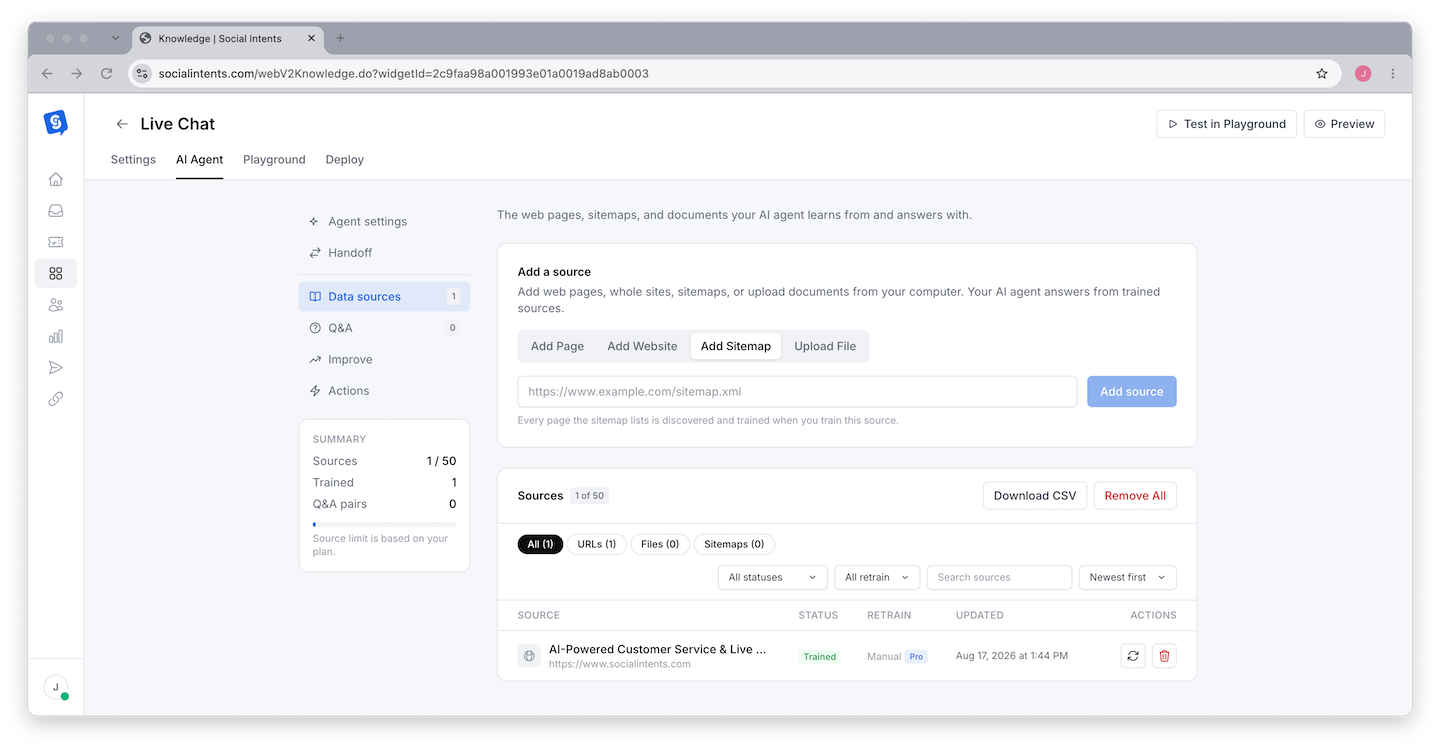
Click "Train Your Chatbot" - This link opens the training interface where you manage all your training content.

Training with Website URLs

Adding URLs is the fastest way to train your chatbot on existing content. The system crawls each URL, extracts the text content, and processes it into your knowledge base.

Enter the URL - Paste the full URL of the page you want to add (e.g., https://yoursite.com/pricing).
Submit - The system crawls the page, extracts the text, chunks it into sentences, generates embeddings, and stores them in the vector database.
Verify - Test the chatbot with a question related to the content on that page to confirm it is working.

Tips for URL training:

  • Add your most important pages first - pricing, features, FAQ, and getting started guides
  • Each URL is processed independently. Add individual page URLs rather than expecting the system to crawl an entire site automatically.
  • Pages behind login walls or that block bots may not be crawlable
  • Clean, text-heavy pages train better than image-heavy pages with little text

Training with Documents

Upload files directly to build your knowledge base from existing materials.

Click the upload area - In the training interface, use the file upload section.
Select your file - Choose a PDF, Word document, Excel file, or CSV from your computer.
Processing - The system extracts text from the document, chunks it, generates embeddings, and stores them. Processing time depends on document size.

Document preparation tips:

  • PDFs - Text-based PDFs work best. Scanned image PDFs have limited text extraction accuracy. If possible, use PDFs that were generated from text (not scanned paper documents).
  • Word documents - Well-structured documents with headers and paragraphs train better than unformatted text walls.
  • Excel files - Use clear column headers. Each row is processed as a separate data item.
  • CSV files - Include header rows. Structure data as question/answer pairs or category/content pairs for best results.

Training with Custom Q&A Pairs

Custom Q&A pairs give you the most control over specific answers. When a visitor asks a question that closely matches one of your Q&A pairs, the chatbot uses your exact answer.

This is ideal for:

  • Questions that require precise, exact answers (return policies, SLAs, pricing details)
  • Frequently asked questions where you want consistent responses
  • Correcting answers the chatbot gets wrong from other training content

Content Strategy for Training

What to Train On

Prioritize content that your visitors actually ask about. Here is a recommended order:

PrioridadeContent TypeWhy
1FAQ and help documentationDirectly answers the questions visitors are most likely to ask
2Product/service descriptionsHelps the chatbot explain what you offer
3Pricing and plansOne of the most common visitor questions
4Getting started guidesHelps new users and prospects understand your product
5Policy documentsEnsures accurate answers about returns, SLAs, privacy, etc.
6Troubleshooting guidesHelps the chatbot resolve common support issues
7Blog contentProvides depth on specific topics and use cases

What NOT to Train On

  • Internal-only documents - Employee handbooks, internal memos, confidential pricing strategies. The chatbot could expose this information to visitors.
  • Outdated content - Old pricing pages, deprecated feature docs, and obsolete guides. They cause the chatbot to give incorrect answers.
  • Competitor comparisons - Unless you want the chatbot discussing competitors, avoid training on competitor analysis documents.
  • Extremely long documents - A 500-page user manual is less effective than targeted sections. Break large documents into focused smaller pieces.

Article Display Modes

Social Intents offers several options for how training content sources are displayed alongside the chatbot's response. This is controlled by the Content Display setting in your AI Chatbot Settings tab:

ModeWhat Visitors SeeIdeal para
Hide ArticlesOnly the AI-generated response. No source references.Clean, simple chat experience
Refer to Article URLsLinks to the source articles/pages used in the answer.Driving visitors to your documentation
Show Best Match SourceThe single most relevant source excerpt.Providing evidence without overwhelming
Show Top SourcesThe top matching source excerpts.Transparency about where answers come from
Show Top with ScoreTop sources with relevance scores.Internal testing to evaluate answer quality
Show All, Include Uploaded FilesAll matched sources including uploaded documents.Maximum transparency, debugging
Start with "Refer to Article URLs" for customer-facing chatbots. This gives visitors confidence that the answer comes from your official documentation and encourages them to read more on your site. Switch to "Hide Articles" once you are confident in the chatbot's accuracy.

Retraining and Updating Content

Your business evolves - products change, pricing updates, new features launch. Your chatbot's training data needs to keep up.

When to Retrain

  • You update your website pages that the chatbot was trained on
  • You release new products or features
  • Your pricing or plans change
  • You notice the chatbot giving outdated information
  • Your policies change (returns, SLAs, privacy)

How to Retrain

Return to the training interface and re-add the updated URLs or re-upload the updated documents. The system processes the new content and updates the embeddings in the vector database. Old embeddings from the previous version of the same content are replaced.

Retraining is per-content-item. You only need to retrain the specific URLs or documents that changed. You do not need to retrain everything when a single page updates.

Automatic Retraining (Pro Plans and Above)

On Pro plans and above, Social Intents can automatically retrain your chatbot on a schedule. The system re-crawls your trained URLs and reprocesses the content to keep your knowledge base current without manual intervention.

Available schedules:

  • Daily - Best for websites with frequent content changes (e.g., ecommerce pricing, news, inventory-driven pages)
  • Weekly - Best for most businesses where content changes regularly but not daily
  • Monthly - Best for stable content that changes infrequently (e.g., policy docs, established product pages)

Configure automatic retraining in your widget's AI Chatbot Settings tab. Select the retraining frequency from the dropdown. When enabled, the system automatically re-crawls all trained URLs on the selected schedule and updates the embeddings with the latest content.

Start with weekly. Most businesses benefit from weekly retraining as a good balance between keeping content fresh and minimizing processing. Switch to daily if you notice outdated answers appearing frequently, or monthly if your content rarely changes.

Troubleshooting Training Issues

Chatbot Gives Incorrect Answers

If the chatbot responds with wrong information:

  • Check whether the source content is correct. The chatbot can only be as accurate as the content it was trained on.
  • Add a custom Q&A pair with the correct answer for that specific question. Q&A pairs take priority over general training content.
  • Update your system instructions with a rule about the specific topic.

Chatbot Says "I Don't Know" Too Often

If the chatbot cannot answer questions that it should know:

  • Your training content may not cover that topic yet. Add the relevant pages or documents.
  • The question may be phrased differently from your content. Add custom Q&A pairs using the exact phrasing visitors use.
  • The content may be too dense or poorly formatted. Break it into clearer, more targeted sections.

Chatbot Mixes Up Information

If the chatbot combines information from different topics incorrectly:

  • Review your training content for ambiguous or overlapping information
  • Separate distinct topics into separate training articles rather than one long document
  • Add system instructions that tell the chatbot to be careful about distinguishing between related but different topics

URL Crawling Fails

If a URL cannot be processed:

  • Make sure the URL is publicly accessible (not behind authentication)
  • Check that the page does not block bots via robots.txt or meta tags
  • Try copying the page content into a document and uploading it instead

Training Content Limits

The number of training articles and content items available depends on your Social Intents plan. Higher-tier plans allow more training content, which means broader chatbot knowledge. Check your plan details for specific content limits.

The number of articles referenced per response also varies - typically 3 to 6 article chunks are retrieved per visitor question, depending on your account tier. This means each response draws from the most relevant pieces of your training data rather than trying to include everything.

Best Practices Summary

  • Start with your FAQ - This is the highest-impact content for most chatbots
  • Use custom Q&A for critical answers - When exact wording matters, Q&A pairs give you complete control
  • Keep content current - Retrain whenever important pages change
  • Test after training - Ask the chatbot the questions you expect visitors to ask and verify the answers
  • Use article display modes - Let visitors see where answers come from to build trust
  • Quality over quantity - Ten well-written, focused pages train better than one hundred poorly organized ones
  • Combine with system instructions - Training provides the knowledge; system instructions tell the chatbot how to use it

Perguntas frequentes

Can I train the chatbot on my entire website?

You can train on multiple URLs from your website, but you add them individually. There is no automatic full-site crawl. Focus on the most important and most frequently referenced pages for the best results.

How long does training take?

Each URL or document typically processes within seconds to a couple of minutes, depending on the content size. Large PDFs with hundreds of pages may take longer. You can continue using the chatbot while new content is being processed.

Does training content affect AI engine costs?

Yes, indirectly. When the chatbot retrieves training content for a response, the retrieved content is included as context in the AI request, which adds to the token count. However, this overhead is typically modest and the improvement in response quality far outweighs the small additional cost.

Can I see what content the chatbot used to generate an answer?

Yes. Set the Content Display mode to "Show Top Sources" or "Show Top with Score" to see which training content chunks were used for each response. This is invaluable for debugging and improving your training data.

Is my training content shared with other users?

No. Your training content is stored separately and is only accessible to your chatbot. It is not shared with other Social Intents customers or used to train the underlying AI models.

Can I remove training content?

Yes. You can remove individual training items (URLs, documents, Q&A pairs) from the training interface. The associated embeddings are removed from the vector database and the chatbot will no longer reference that content in its responses going forward.