Setting up a live chat widget with Social Intents takes about five minutes. This step-by-step guide walks you through creating your account, connecting your team's collaboration platform, building your first chat widget, embedding the widget on your website, and testing the entire message flow from visitor to agent. By the end of this guide you will have a fully functional live chat experience running on your site.
Step 1: Create Your Account and Log In
Visit socialintents.com/activate.jsp and create a free trial account. You can sign up with an email address or use your Google account for faster registration. Your trial includes full access to all features for 14 days - no credit card is required and there are no usage limits during the trial period.
After signing up you will be redirected to the Social Intents dashboard. The dashboard is your command center for managing everything: chat widgets, AI chatbots, team members, integrations, and analytics. Take a moment to familiarize yourself with the left-hand navigation menu.
Step 2: Connect Your Team Platform
Social Intents is unique because your agents respond to website chats directly from the tools they already use every day - Microsoft Teams, Slack, Google Chat, Zoom, or Webex. This means your team does not need to learn a new interface or keep another browser tab open. Chats arrive as threads in the channels your team already monitors.
To connect your platform, navigate to Integrations in the dashboard and select the platform your team uses:
| Plataforma | How to Connect | Tempo de configuração | Detailed Guide |
|---|---|---|---|
| Microsoft Teams | Click "Add to Teams" and authorize the Social Intents bot in your Teams workspace. Select the team and channel where chats should appear. | 2 minutes | Connect to Microsoft Teams |
| Slack | Click "Add to Slack" and authorize the Social Intents app. Choose the workspace and channel for incoming chats. | 2 minutes | Connect to Slack |
| Bate-papo do Google | Install the Social Intents Chat app from the Google Workspace Marketplace. Select a Google Chat space for conversations. | 3 minutes | Connect to Google Chat |
| Zoom | Connect your Zoom account and select a Team Chat channel for incoming chats. | 2 minutes | Connect to Zoom |
| Webex | Connect your Webex account and choose a Webex space for conversations. | 2 minutes | Connect to Webex |
What Happens After You Connect
Once you authorize the integration, Social Intents installs a bot in your workspace. When a visitor starts a chat on your website, the bot creates a new message thread in the channel you selected. Your agents can reply directly in that thread, and their responses appear in real time on the visitor's chat widget. File attachments, emoji, and formatted text all work across the bridge.
Step 3: Create a Chat Widget
A chat widget is the floating button and chat window that appears on your website. Each widget has its own settings, appearance, chatbot configuration, and channel routing. You can create multiple widgets for different websites, pages, or departments.
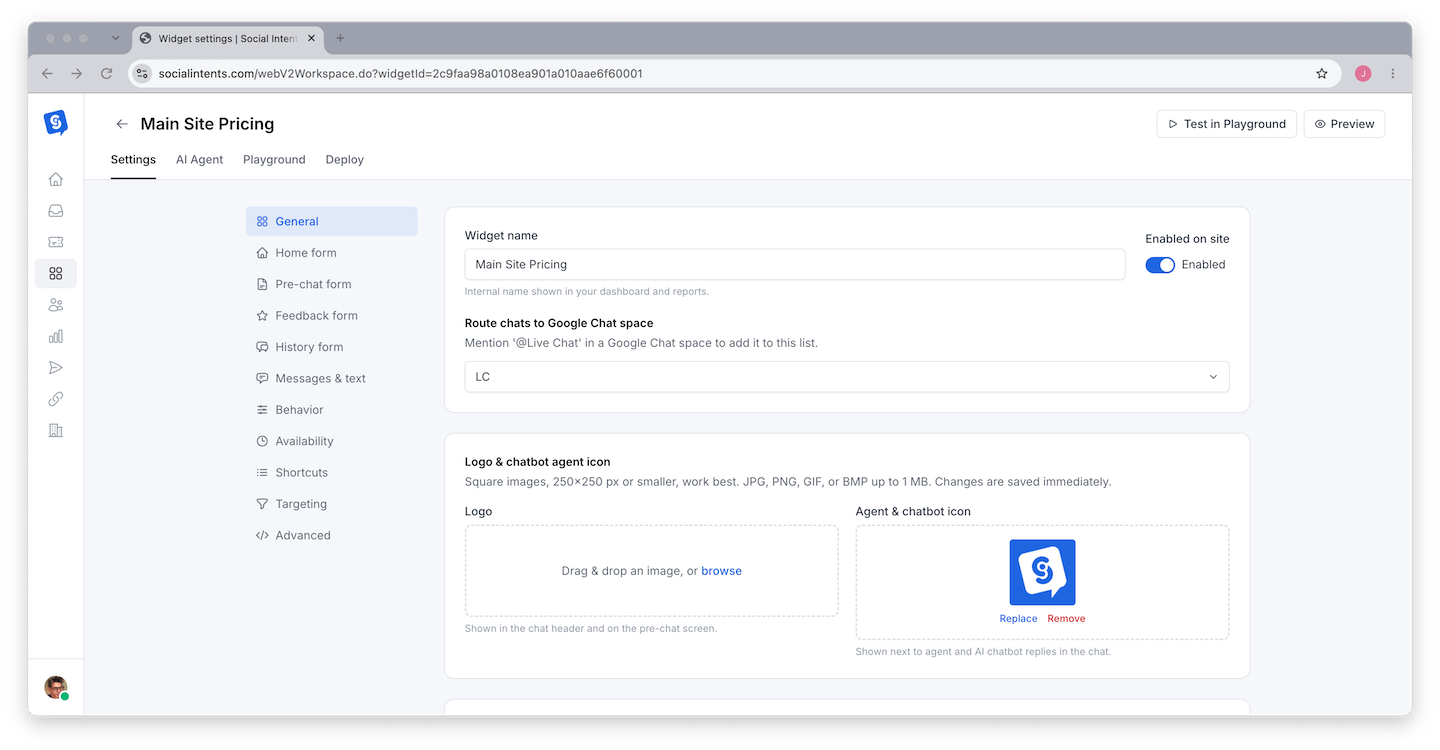
In your dashboard, navigate to My Apps and click Create New Widget. You will configure four essential settings during widget creation:
Widget Name (Internal)
Give your widget an internal name that helps you identify it in the dashboard - for example, "Main Website Chat," "Pricing Page Widget," or "Support Widget." This name is only visible to you and your team. It is not displayed to website visitors.
Display Name (Visitor-Facing)
This is the name visitors see in the chat window header when they open the widget. Use your company name, a department name, or a friendly label like "Support Team" or "Sales." Keep it short and recognizable. Many teams use their brand name followed by "Support" or "Chat" - for example, "Acme Support."
Welcome Message
The welcome message is the first thing visitors see when they open the chat widget. Write a short, friendly greeting that sets clear expectations about response times and available help. Here are some examples that work well:
Hi! 👋 How can we help you today? Our AI assistant can answer most questions instantly, or we can connect you with our team.
Welcome to Acme Support! Ask us anything about our products, pricing, or integrations. We typically respond within a few minutes.
Channel Assignment
Select the specific channel or space where incoming chats will be routed. For Microsoft Teams, this is a Teams channel. For Slack, it is a Slack channel. For Google Chat, it is a Google Chat space. When a visitor sends a message, Social Intents automatically creates a new conversation thread in this channel so your team can respond without leaving their workflow.
You can change the channel assignment at any time from the widget settings. If you have multiple departments, consider creating separate widgets with separate channel assignments - one for sales and one for support, for example. Learn more about routing in Routing Chats to Teams and Channels.
Step 4: Add an AI Chatbot (Optional but Recommended)
Adding an AI chatbot to your widget means visitors get instant responses 24 hours a day, 7 days a week - even when your team is offline or busy. The chatbot can answer common questions, guide visitors to the right page, collect contact information, and escalate complex issues to a human agent. Over 70% of routine customer questions can be handled by a well-trained AI chatbot.
To set up a chatbot on your widget:
Step 5: Customize the Widget Appearance
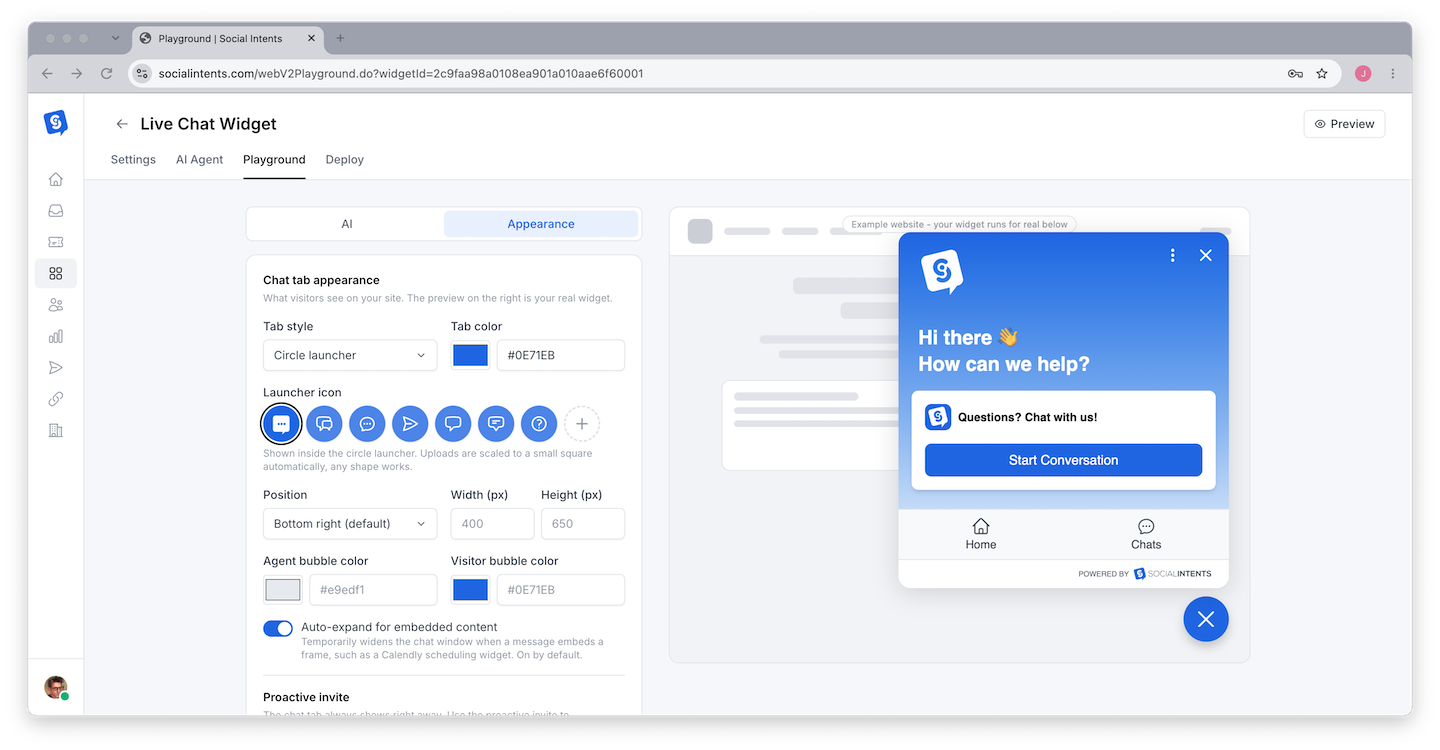
A well-designed chat widget builds trust and encourages visitors to start conversations. Social Intents provides extensive customization options so the widget looks like a natural part of your website rather than a third-party add-on.
Visual Customization Options
- Primary color - Set the color for the chat button, header bar, and send button. Use your brand's primary color so the widget matches your site. Enter a hex code like
#4F46E5or use the color picker. - Text color - Control the color of text in the header and on the chat button. Choose white or dark text depending on your primary color for optimal readability.
- Position - Place the chat button in the bottom-right corner (default and most common) or the bottom-left corner. Bottom-right is the industry standard and what visitors expect.
- Button style - Choose between a round floating button with an icon, a text button with a label like "Chat with us," or a tab-style button that sits on the edge of the screen.
- Button text - Customize the label on the chat launcher button. Common choices include "Chat with us," "Need help?," "Ask a question," or "💬 Live Chat."
- Chat window size - Adjust the width and height of the chat window. The default size works well for most sites, but you can make it larger for content-heavy support or smaller for mobile-optimized pages.
- Agent photos - Upload profile photos for your agents. When an agent responds, their photo appears next to their message. This adds a personal touch and increases visitor trust.
- Custom CSS - For advanced customization, you can inject custom CSS to override any default styles. This is useful for matching complex brand guidelines.
For the complete list of appearance settings and design recommendations, see Customizing Chat Widget Appearance.
Step 6: Install the Widget on Your Website
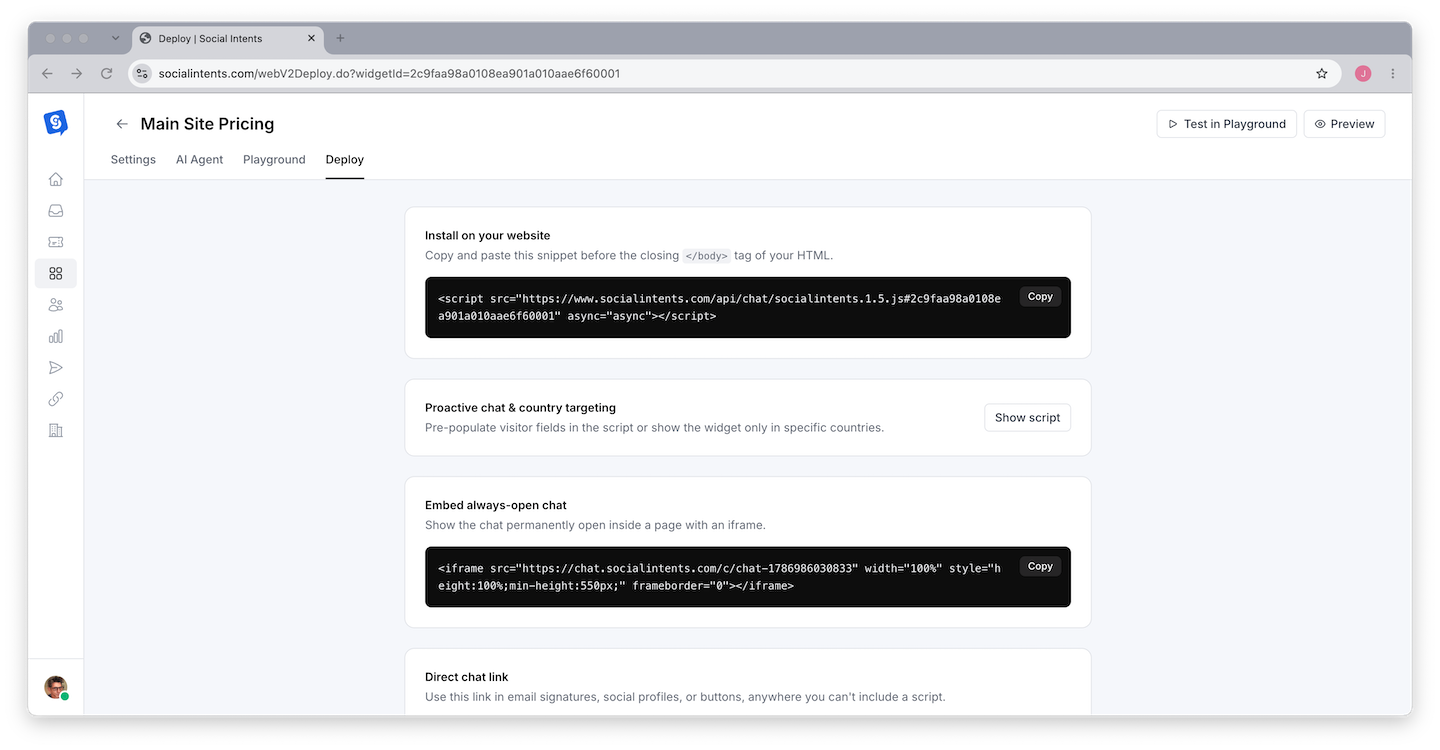
Once your widget is configured, go to the widget settings and click Get Code. Social Intents generates a single JavaScript snippet that you paste into your website. This snippet loads the chat widget asynchronously, meaning it will not slow down your page load time.
The Embed Code
Your embed code will look like this:
<!-- Social Intents Live Chat -->
<script src="https://www.socialintents.com/api/chat/socialintents.1.4.js#YOUR_APP_KEY"
async="async"></script>
Copy this snippet and paste it into your website's HTML just before the closing </body> tag. The chat widget will appear automatically on every page where this script is included. The async attribute ensures the script loads in the background without blocking your page content.
#). Do not change this key or alter the script URL. If you need a new key, generate one from the dashboard.
CMS and Website Builder Installation
If you use a content management system or website builder, the installation method varies. Follow the specific guide for your platform to ensure the code is placed correctly:
| Plataforma | Where to Place the Code | Detailed Guide |
|---|---|---|
| WordPress | Use the Social Intents plugin, or paste the code in Appearance → Theme Editor → footer.php, or use a header/footer plugin like Insert Headers and Footers | WordPress Installation |
| Shopify | Go to Online Store → Themes → Edit Code → theme.liquid, and paste before the closing body tag | Shopify Installation |
| Webflow | Go to Project Settings → Custom Code → Footer Code, and paste the snippet | Webflow Installation |
| Squarespace | Go to Settings → Advanced → Code Injection → Footer, and paste the snippet | Squarespace Installation |
| Wix | Use the Wix Custom Code feature under Settings → Custom Code, or embed via an HTML iframe element | Wix Installation |
| Google Tag Manager | Create a Custom HTML tag, paste the snippet, and set the trigger to All Pages | Google Tag Manager |
| HubSpot | Go to Settings → Website → Pages → site footer HTML and paste the snippet | HubSpot Installation |
| BigCommerce | Go to Storefront → Script Manager and add the snippet as a footer script | BigCommerce Installation |
Single-Page Applications (React, Vue, Angular)
If your website is a single-page application built with React, Vue, Angular, or a similar framework, you can add the script tag to your main index.html file. The Social Intents widget is framework-agnostic and works with any JavaScript setup. For React specifically, you can add it to the public/index.html file. See framework installation guide for more details.
Step 7: Test Your Widget End to End
Before announcing live chat to your customers, thoroughly test the entire message flow. A complete test ensures that messages travel correctly from your website to your team platform and back. Follow this testing checklist:
For a full testing methodology and a printable checklist, see Previewing and Testing Your Chat.
Troubleshooting Common Setup Issues
If something is not working as expected during setup, check these common issues:
| Issue | Likely Cause | Solution |
|---|---|---|
| Chat widget does not appear on the page | Embed code not placed correctly, or the page is cached | Verify the script is before </body>, clear your browser cache, and check your browser console for JavaScript errors |
| Messages not arriving in Teams or Slack | Integration not authorized, or wrong channel selected | Re-authorize the integration in the dashboard and verify the correct channel is selected in widget settings |
| Chatbot not responding | Chatbot not enabled, or no training content added | Ensure the chatbot is toggled on in widget settings and that you have added at least one training source (URL, document, or Q&A pair) |
| Widget appears but looks unstyled | CSS conflict with your website's styles | The Social Intents widget uses scoped styles, but occasionally site-wide CSS resets can interfere. Contact support if the issue persists. |
| Slow response from chatbot | Large training dataset processing | After adding new training content, allow a few minutes for processing to complete. Test again after the training status shows "Complete." |
You Are Live - What to Do Next
Once you have confirmed that messages flow correctly between your website and your team platform, your chat widget is ready for real visitors. Congratulations! Here are the recommended next steps to get the most out of Social Intents:
Immediate Next Steps
- Add your team members - Invite colleagues so multiple agents can respond to chats simultaneously. Distribute the workload and reduce response times.
- Set up your online schedule - Configure the hours when live chat is available. Outside those hours, the widget can show an offline form or let the AI chatbot handle conversations independently.
- Add a pre-chat form - Collect visitor name, email, and a brief description of their question before the chat starts. This helps agents prepare and gives you contact information for follow-up.
- Set up proactive messages - Configure the widget to automatically invite visitors to chat based on time on page, scroll depth, or specific URLs. Proactive messages can significantly increase chat engagement.
Within Your First Week
- Build or refine your AI chatbot - If you did not add a chatbot during setup, now is the time. If you did, review early chat transcripts and add missing training content to improve answer quality.
- Explore AI Actions - Set up automated workflows like booking calendar appointments, submitting lead forms, or triggering custom API calls based on chat conversations.
- Review your analytics - Check the reporting dashboard to see chat volume, response times, visitor satisfaction, and chatbot performance metrics.
- Read the Best Practices for Getting Started guide for tips on optimizing your setup, writing better chatbot instructions, and training your team on live chat etiquette.
Perguntas frequentes
How many widgets can I create?
The number of widgets depends on your plan. The Starter plan includes 1 widget, Basic includes 2, Pro includes 5, and Business includes 10. Each widget can have its own appearance, chatbot, and channel routing. See pricing details for a full plan comparison.
Can I put the widget on multiple websites?
Yes. Each widget generates a unique embed code. You can place the same widget's code on multiple websites, or create separate widgets for each site with different settings and channel assignments. Many teams use separate widgets to track which site generates each conversation.
Does the widget slow down my website?
No. The Social Intents script loads asynchronously, which means it does not block your page from rendering. The script is lightweight, typically under 50KB, and is served from a global CDN for fast delivery. It has no measurable impact on page load time or Core Web Vitals.
Can I show the widget only on specific pages?
Yes. You can control where the widget appears using URL targeting rules in the widget settings. For example, you can show it only on your pricing page, hide it on blog posts, or display it everywhere except your login page. See Controlling Widget Visibility for details.
What if my team is offline when a visitor starts a chat?
You have two options. First, if you have an AI chatbot enabled, it will handle the conversation automatically and escalate to your team when agents come online. Second, you can configure an offline form that collects the visitor's name, email, and message so your team can follow up later via email. See Online Schedule vs Manual Status for details.
Can I change my team platform later?
Yes. You can switch your integration at any time without losing your widget settings, chatbot configuration, or chat history. Go to the integration settings in your dashboard, disconnect the current platform, and connect a new one. Your widget will continue working throughout the change.